

How Media Effects Work
Each effect is placed at a timestamp in your media. When playback reaches that point, Animant automatically applies the effect to the selected model. You can combine multiple effects to create a sequence—for example, show a model, rotate it to highlight an important detail, point to a specific area, and then hide it when the explanation is complete.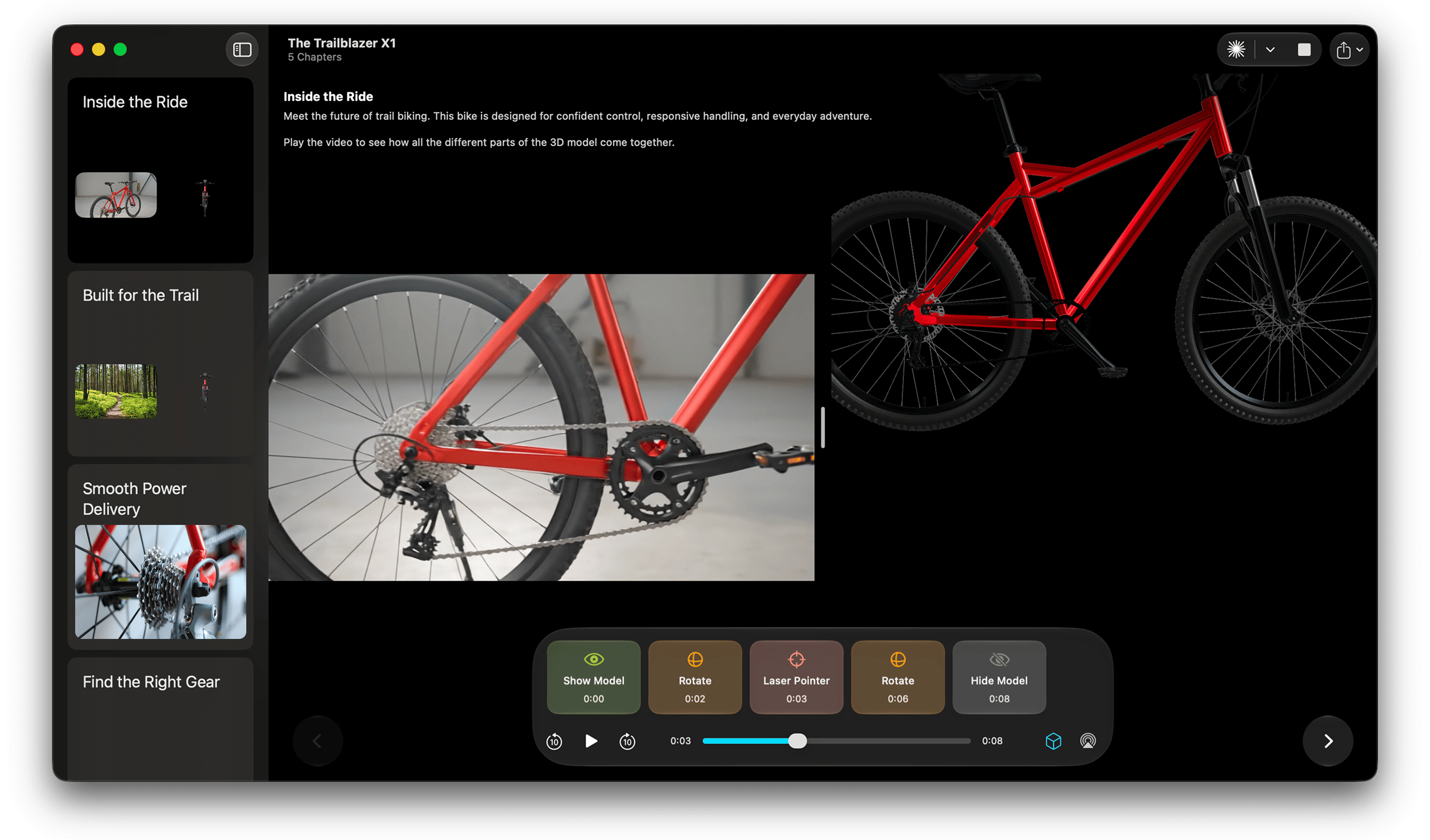
Available Effects
Show Model
Makes the selected 3D model visible. Use this effect when an object should enter the experience at a particular moment.Hide Model
Hides the selected 3D model. Use this effect when the object is no longer relevant or when you want to transition to another model.Rotate Model
Rotates the selected model to a chosen orientation. This is useful for showing another side of an object or drawing attention to a specific feature.After selecting this effect, a rotation is created based on the current rotation of the model in the editor. Make sure the model looks just how you want it to before adding this effect.
Laser Pointer
Displays a laser pointer aimed at a location on the model. Use it to highlight a component, surface, or important detail while the media explains it.- Drag anywhere on the model to display the laser pointer’s strokes in 3D.
Creating an Effect
- Move the playhead to the point where the effect should begin.
- Select Add at [Time] next to the effects track.

- Select an effect.
- Preview the chapter to check the timing.