> ## Documentation Index
> Fetch the complete documentation index at: https://support.animantlabs.com/llms.txt
> Use this file to discover all available pages before exploring further.
# Media Effects
> Add effects that emphasize different parts of your 3D models in your chapters
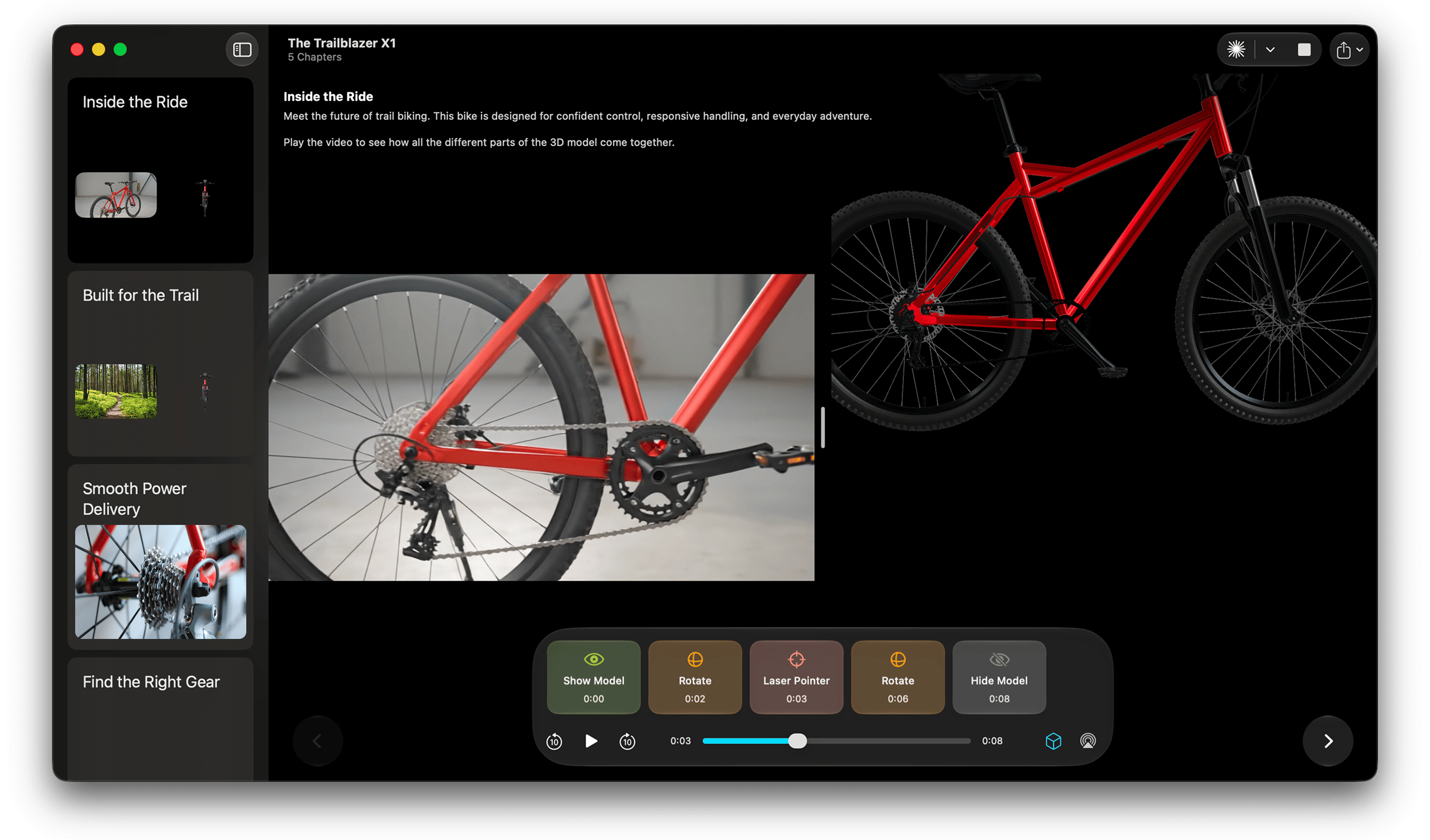
Media Effects let you control 3D models while a video or audio track plays. Add effects at specific points on the timeline to reveal objects, guide attention, and create time-synchronised demonstrations.
## How Media Effects Work
Each effect is placed at a timestamp in your media. When playback reaches that point, Animant automatically applies the effect to the selected model.
You can combine multiple effects to create a sequence—for example, show a model, rotate it to highlight an important detail, point to a specific area, and then hide it when the explanation is complete.
 ## Available Effects
### Show Model
Makes the selected 3D model visible. Use this effect when an object should enter the experience at a particular moment.
### Hide Model
Hides the selected 3D model. Use this effect when the object is no longer relevant or when you want to transition to another model.
### Rotate Model
Rotates the selected model to a chosen orientation. This is useful for showing another side of an object or drawing attention to a specific feature.
After selecting this effect, a rotation is created based on the current rotation of the model in the editor. Make sure the model looks just how you want it to before adding this effect.
### Laser Pointer
Displays a laser pointer aimed at a location on the model. Use it to highlight a component, surface, or important detail while the media explains it.
* Drag anywhere on the model to display the laser pointer's strokes in 3D.
## Creating an Effect
1. Move the playhead to the point where the effect should begin.
2. Select *Add at \[Time]* next to the effects track.
## Available Effects
### Show Model
Makes the selected 3D model visible. Use this effect when an object should enter the experience at a particular moment.
### Hide Model
Hides the selected 3D model. Use this effect when the object is no longer relevant or when you want to transition to another model.
### Rotate Model
Rotates the selected model to a chosen orientation. This is useful for showing another side of an object or drawing attention to a specific feature.
After selecting this effect, a rotation is created based on the current rotation of the model in the editor. Make sure the model looks just how you want it to before adding this effect.
### Laser Pointer
Displays a laser pointer aimed at a location on the model. Use it to highlight a component, surface, or important detail while the media explains it.
* Drag anywhere on the model to display the laser pointer's strokes in 3D.
## Creating an Effect
1. Move the playhead to the point where the effect should begin.
2. Select *Add at \[Time]* next to the effects track.
 3. Select an effect.
4. Preview the chapter to check the timing.
3. Select an effect.
4. Preview the chapter to check the timing.