> ## Documentation Index
> Fetch the complete documentation index at: https://support.animantlabs.com/llms.txt
> Use this file to discover all available pages before exploring further.
# Magic Chapter
> Use AI to create trimmed clips and chapter summaries
## Magic Chapter
With Magic Chapter, you can import an audio, video, image, or PDF file and generate chapters based on the key topics discussed in your content.
### How does Magic Chapter work?
When you import an audio or video file, Animant uses an on-device model to transcribe your spoken words into text. When you import an image or PDF file, Animant skips transcription and jumps straight into summarization after you choose your preferred writing style.
Magic Chapter runs directly on your device, so your media is never shared with us.
Magic Chapter requires iOS 26.0+, iPadOS 26.0+, macOS 26.0+, or visionOS 26.0+, and a device with Apple Intelligence enabled.
### Get started with Magic Chapter
* Select the sparkles icon in the toolbar, or *Create from Media* when creating a new story.
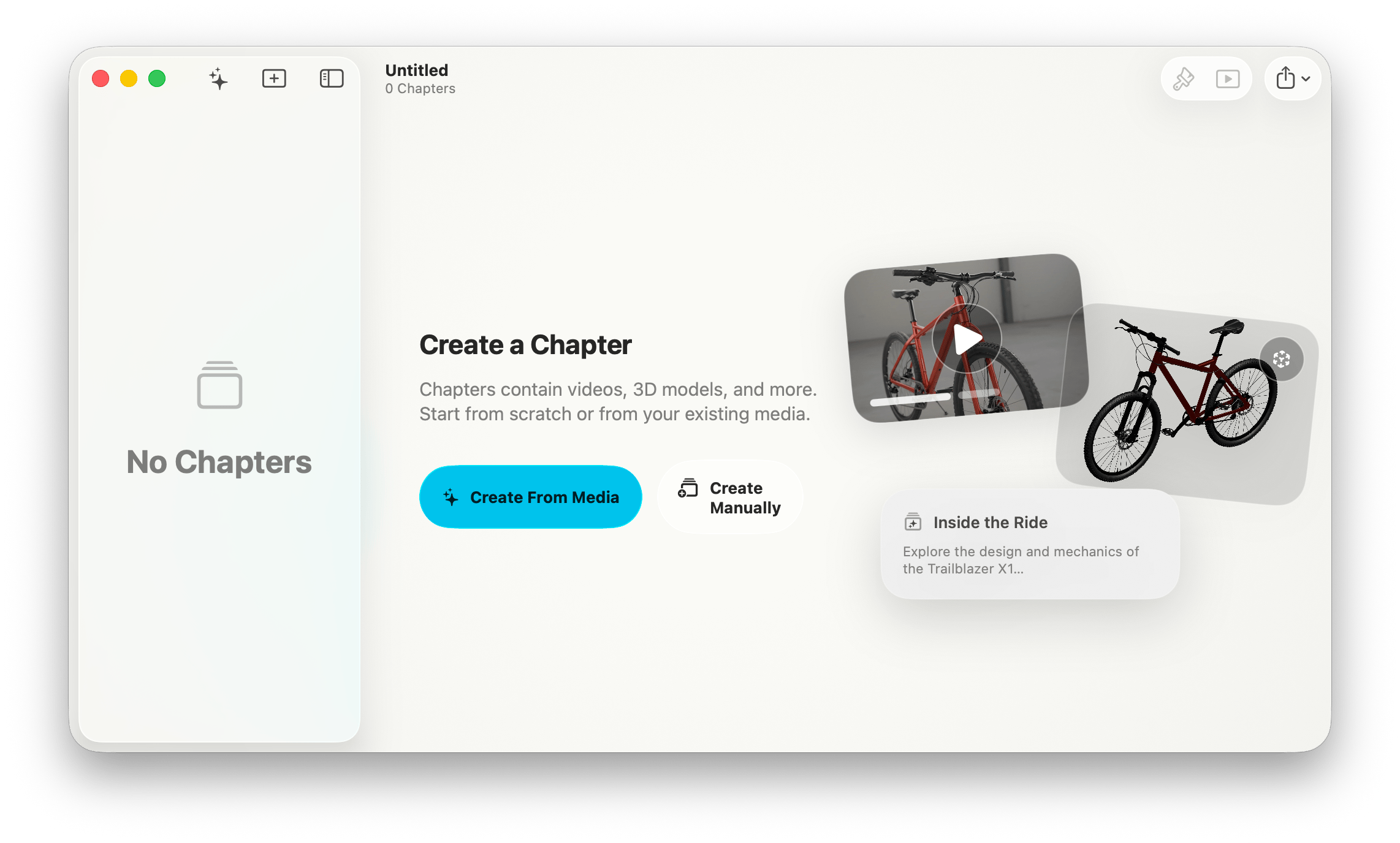
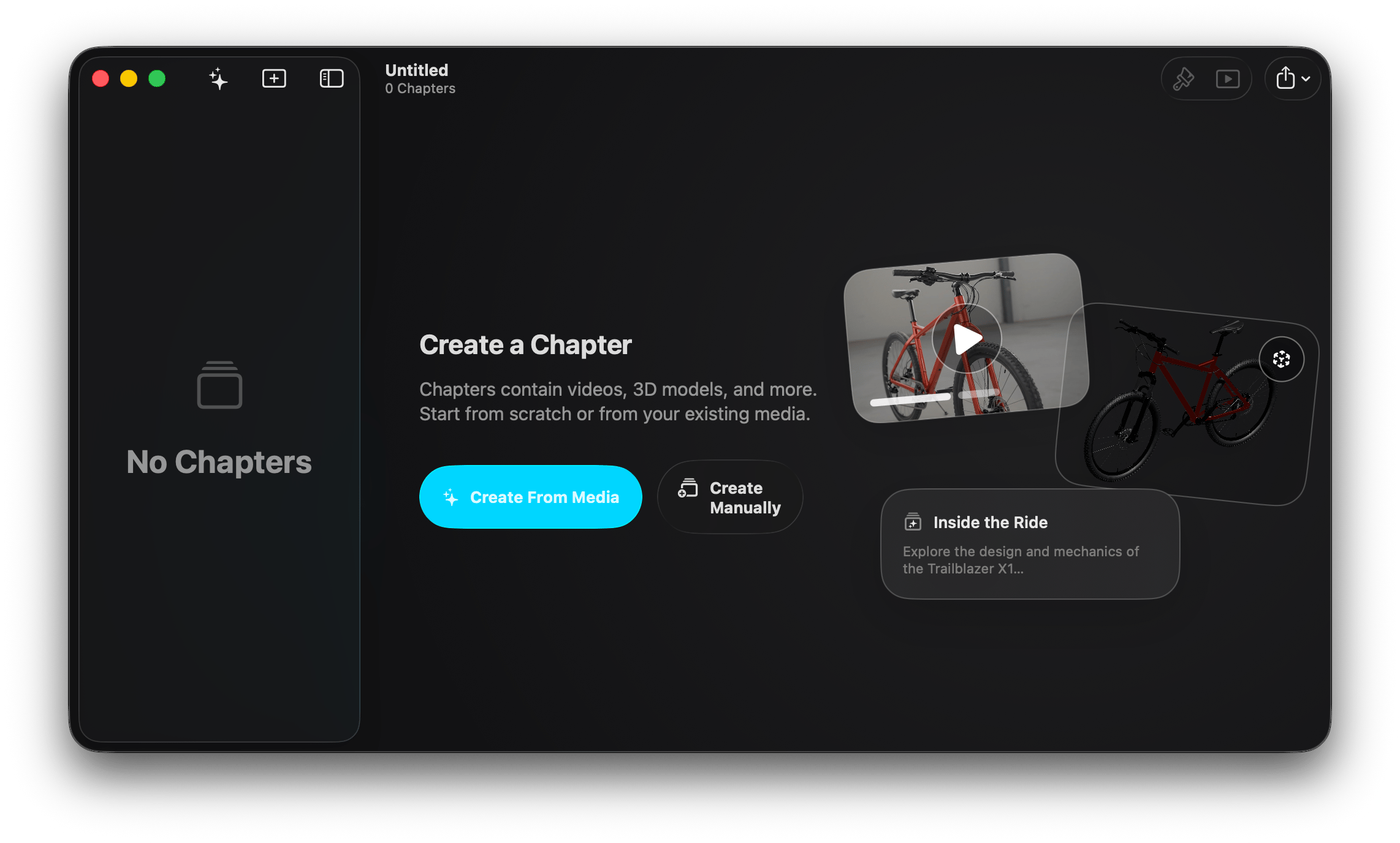 * Select *Get Started*.
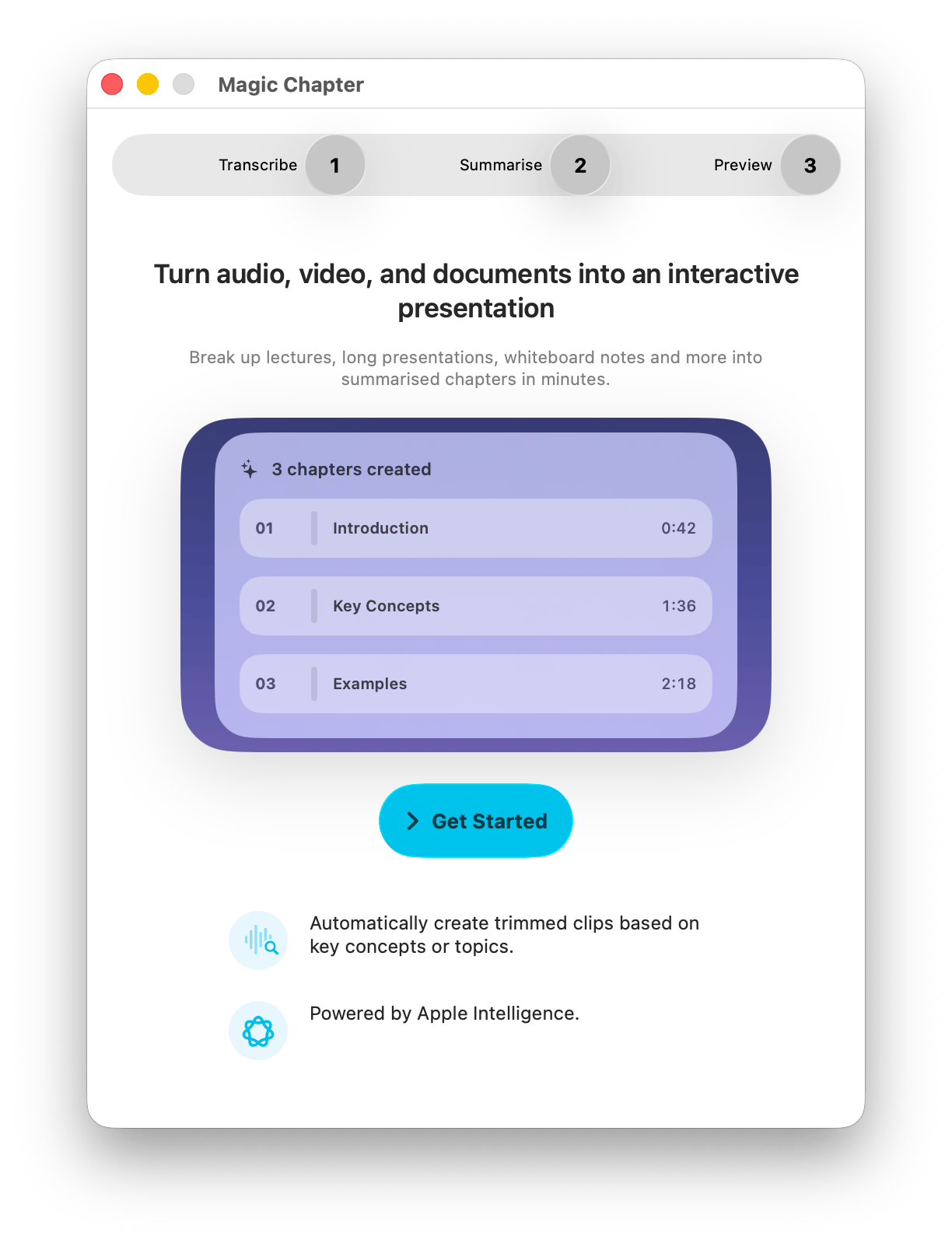
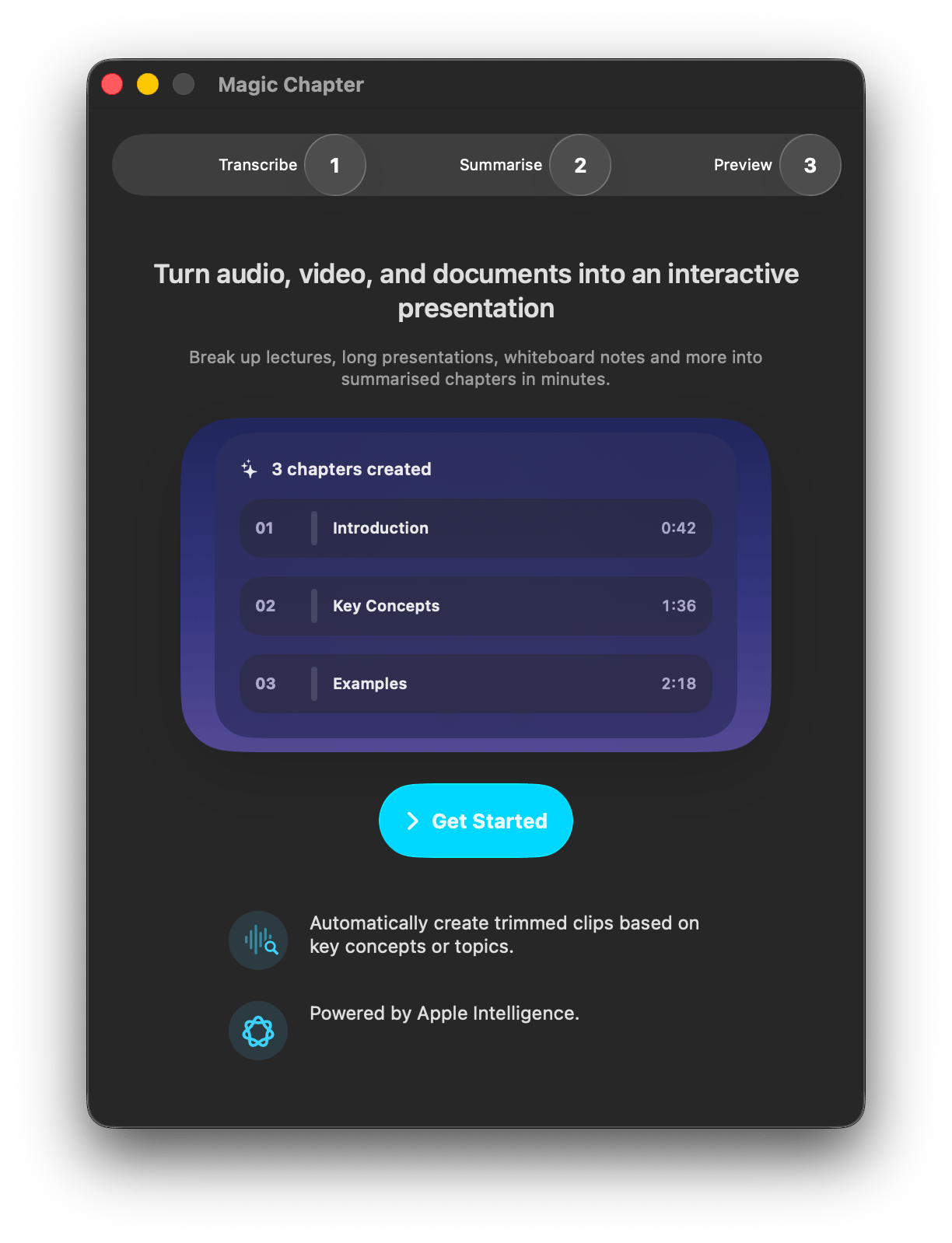 * Drag and drop your media, or tap the **+** button and choose an existing media file.
* Adjust your summary writing style, then tap the ✔️ button on the top of the window.
* After Magic Chapter has finished, tap the ✔️ button again to add the new chapters to your story.
## Restrictions
* Requests for content that violates our [Terms of Service](https://animant.app/terms) will be blocked.
* Drag and drop your media, or tap the **+** button and choose an existing media file.
* Adjust your summary writing style, then tap the ✔️ button on the top of the window.
* After Magic Chapter has finished, tap the ✔️ button again to add the new chapters to your story.
## Restrictions
* Requests for content that violates our [Terms of Service](https://animant.app/terms) will be blocked.