> ## Documentation Index
> Fetch the complete documentation index at: https://support.animantlabs.com/llms.txt
> Use this file to discover all available pages before exploring further.
# 3D Scan
> Bring physical objects into your presentation with Object and Room Capture
 ## Introduction
With 3D Scan in Animant, you can create detailed virtual representations of your physical environment with your iPhone or iPad's advanced camera system. The two available modes are Object Capture and Room Capture:
* Object Capture converts photos of a physical object taken in a variety of angles into a 3D Asset of your object. This process is also known as photogrammetry.
* Room Capture guides you through a 360° pan around your room to create a 3D Asset of your room's interior plan, replacing objects with boxes. Room Capture is available on supported iPhone and iPad models.
3D Scan requires an pro model iPhone or iPad introduced in 2020 or later, an Intel-based Mac with at least 4GB VRAM, or a Mac with Apple silicon. To check if your device is compatible, open the app and start a new 3D Scan.
## How does Object Capture work?
### iPhone and iPad
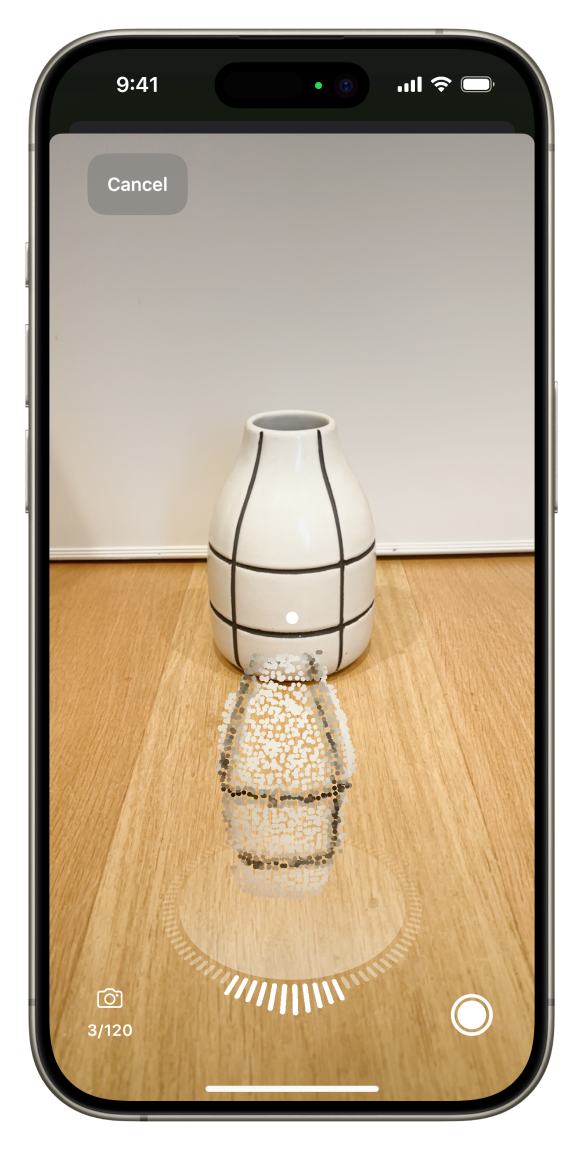
On iPhone and iPad, Animant guides you through a series of orbits around your object. In each orbit, the camera captures photos and depth information to accurately reconstruct the object.
You'll be asked to flip the object to capture the bottom surface. If this isn't possible, you can skip this step and omit this side of your scan.
### Mac
On Mac, you can drag a folder of images that depict multiple angles of your object. Try to capture every possible angle of your object to achieve the best result.
You can also choose advanced quality options (see below) to use these 3D scans in advanced workflows.
### Get Started with Object Capture
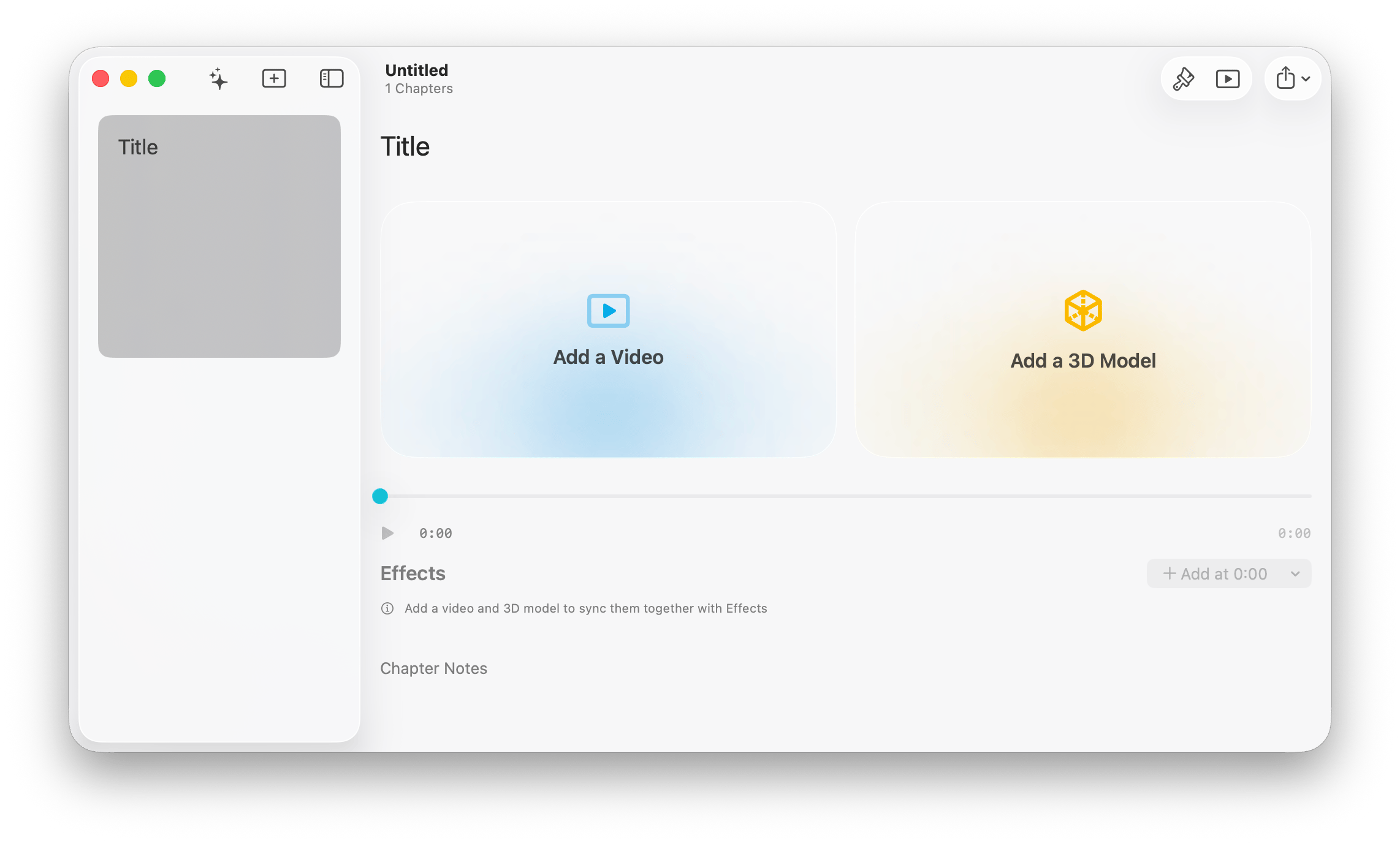
Create a new chapter, then select *Add a 3D Model*, then *3D Scan*:
## Introduction
With 3D Scan in Animant, you can create detailed virtual representations of your physical environment with your iPhone or iPad's advanced camera system. The two available modes are Object Capture and Room Capture:
* Object Capture converts photos of a physical object taken in a variety of angles into a 3D Asset of your object. This process is also known as photogrammetry.
* Room Capture guides you through a 360° pan around your room to create a 3D Asset of your room's interior plan, replacing objects with boxes. Room Capture is available on supported iPhone and iPad models.
3D Scan requires an pro model iPhone or iPad introduced in 2020 or later, an Intel-based Mac with at least 4GB VRAM, or a Mac with Apple silicon. To check if your device is compatible, open the app and start a new 3D Scan.
## How does Object Capture work?
### iPhone and iPad
On iPhone and iPad, Animant guides you through a series of orbits around your object. In each orbit, the camera captures photos and depth information to accurately reconstruct the object.
You'll be asked to flip the object to capture the bottom surface. If this isn't possible, you can skip this step and omit this side of your scan.
### Mac
On Mac, you can drag a folder of images that depict multiple angles of your object. Try to capture every possible angle of your object to achieve the best result.
You can also choose advanced quality options (see below) to use these 3D scans in advanced workflows.
### Get Started with Object Capture
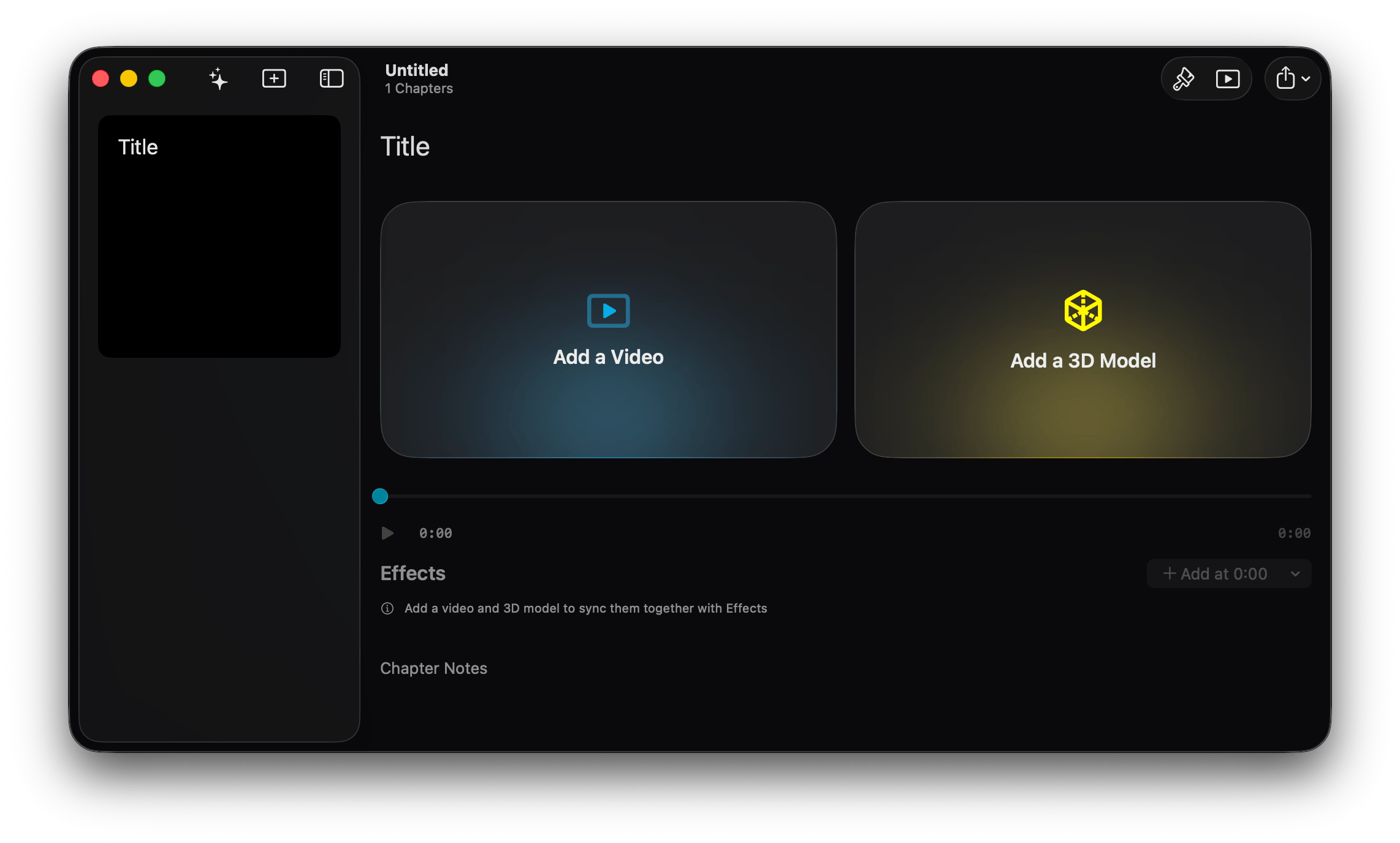
Create a new chapter, then select *Add a 3D Model*, then *3D Scan*:
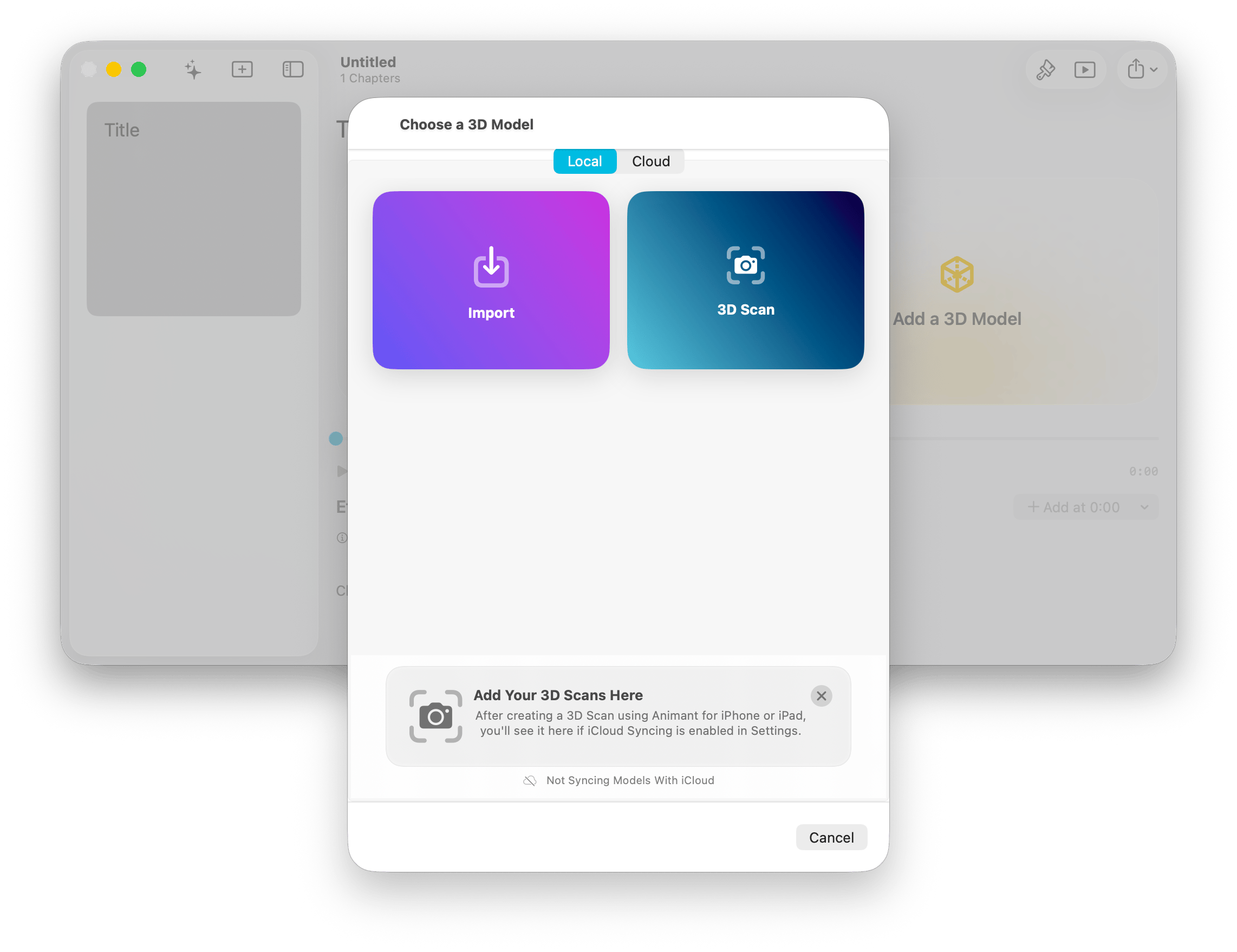
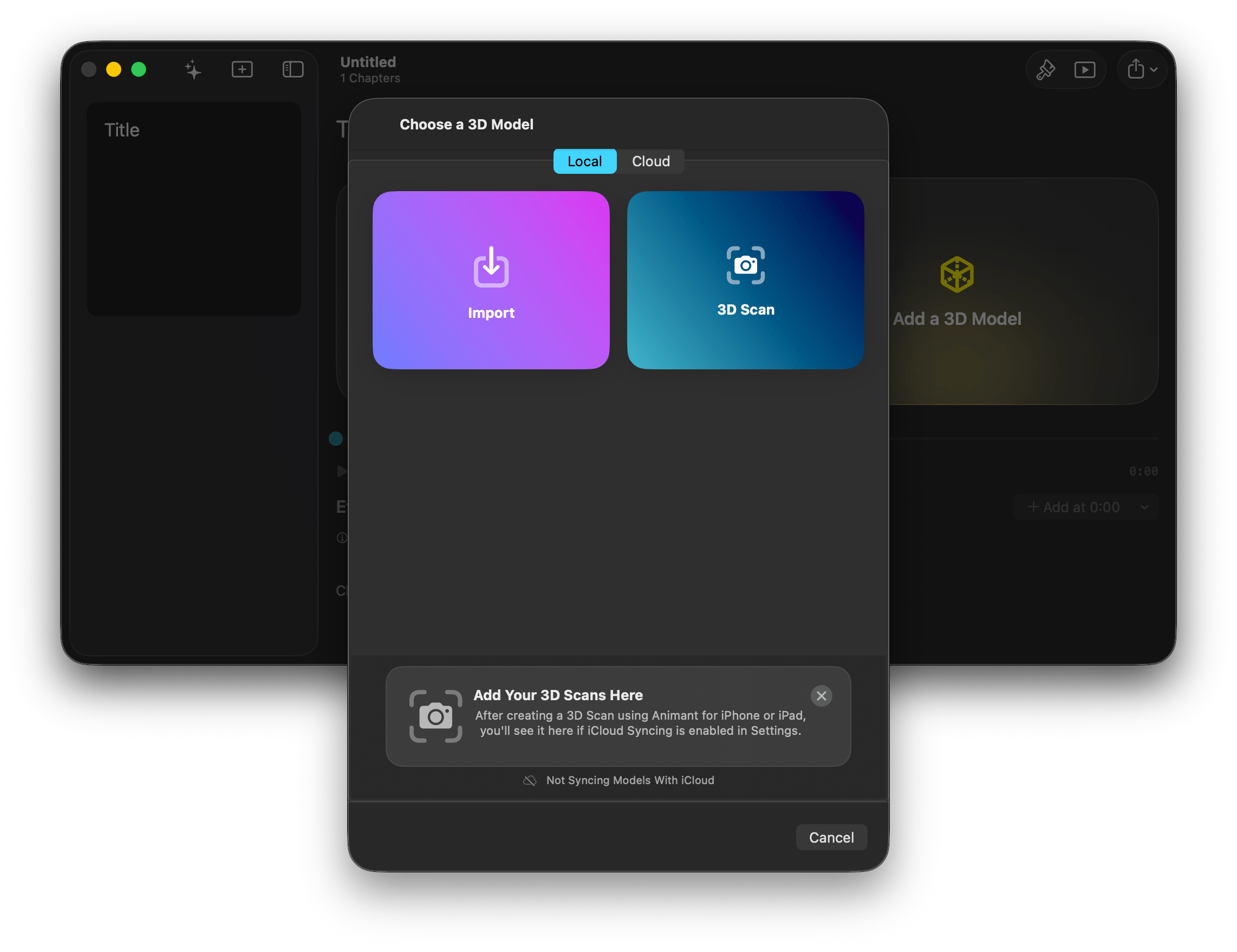 * Select *Object Capture* to capture a single physical object in 3D.
* Select *Room Capture* to create a 3D floor plan of one or more rooms.
### Considerations when taking photos for Object Capture
* Take your photos in a series of orbits around the object.
* For best results, try to isolate your object against a plain background and place it directly under a uniform light.
* As a general rule of thumb, the more photos and camera angles you capture, the more accurate your resulting 3D Asset will be.
## Object Capture Options
### Area Mode
Some objects are difficult to capture by walking around and using the bounding box, such as outdoor terrain, large objects, or 2.5D surfaces. Use Area Mode to capture these objects.
Enable Area Mode by tapping the box symbol after selecting Object Capture from the 3D Scan menu.
### Advanced Quality Options
On macOS, you can finely tune the Mesh Type, Quality, and Masking of your set of object photos.
* Mesh Type
* Select **Triangular Mesh** for standard presentation use.
* Select **Quad Mesh** to optimise the model for use in 3D modelling software after exporting the model (requires Animant Pro).
* Quality
* Adjust the polygon count, texture maps, format and resolution, and detail levels for high-quality graphics in 3D modelling software (requires Animant Pro).
* Masking
* **Isolate object from environment (default)** to exclude the background in the final 3D model.
* **Include environment around object** to include the background in the final 3D model.
## Data Privacy
The photos taken using the above features are processed entirely on your device(s) and never transferred or shared with Animant. If you enable iCloud syncing, the resulting 3D assets will be automatically uploaded to your iCloud storage. For more information about how Animant handles your privacy, please read the app's privacy policy [here](https://animant.co/privacy).
* Select *Object Capture* to capture a single physical object in 3D.
* Select *Room Capture* to create a 3D floor plan of one or more rooms.
### Considerations when taking photos for Object Capture
* Take your photos in a series of orbits around the object.
* For best results, try to isolate your object against a plain background and place it directly under a uniform light.
* As a general rule of thumb, the more photos and camera angles you capture, the more accurate your resulting 3D Asset will be.
## Object Capture Options
### Area Mode
Some objects are difficult to capture by walking around and using the bounding box, such as outdoor terrain, large objects, or 2.5D surfaces. Use Area Mode to capture these objects.
Enable Area Mode by tapping the box symbol after selecting Object Capture from the 3D Scan menu.
### Advanced Quality Options
On macOS, you can finely tune the Mesh Type, Quality, and Masking of your set of object photos.
* Mesh Type
* Select **Triangular Mesh** for standard presentation use.
* Select **Quad Mesh** to optimise the model for use in 3D modelling software after exporting the model (requires Animant Pro).
* Quality
* Adjust the polygon count, texture maps, format and resolution, and detail levels for high-quality graphics in 3D modelling software (requires Animant Pro).
* Masking
* **Isolate object from environment (default)** to exclude the background in the final 3D model.
* **Include environment around object** to include the background in the final 3D model.
## Data Privacy
The photos taken using the above features are processed entirely on your device(s) and never transferred or shared with Animant. If you enable iCloud syncing, the resulting 3D assets will be automatically uploaded to your iCloud storage. For more information about how Animant handles your privacy, please read the app's privacy policy [here](https://animant.co/privacy).